WordPress Plugin Update Policies: 8 Practices for Secure Maintenance
Automated updates often break business logic, so you must isolate plugin changes in staging environments to prevent silent data corruption during security patches.

Establish a policy that separates security-critical patches from feature updates. Use staging environments to test compatibility before applying changes to production. Automate only verified security fixes while keeping feature updates manual to avoid breaking existing functionality or user workflows.
1. Separate Security Patches from Feature Updates
You must distinguish between critical security fixes and new functionality. Security patches address known vulnerabilities, while feature updates modify behaviour. Mixing these creates unnecessary risk. Feature updates can break existing integrations or change database schemas without warning. Security patches usually maintain backward compatibility to ensure immediate protection. Treating them differently reduces downtime.
Tip: Configure your update manager to auto-approve only minor version increments for security, while requiring manual approval for major version changes that introduce new features.
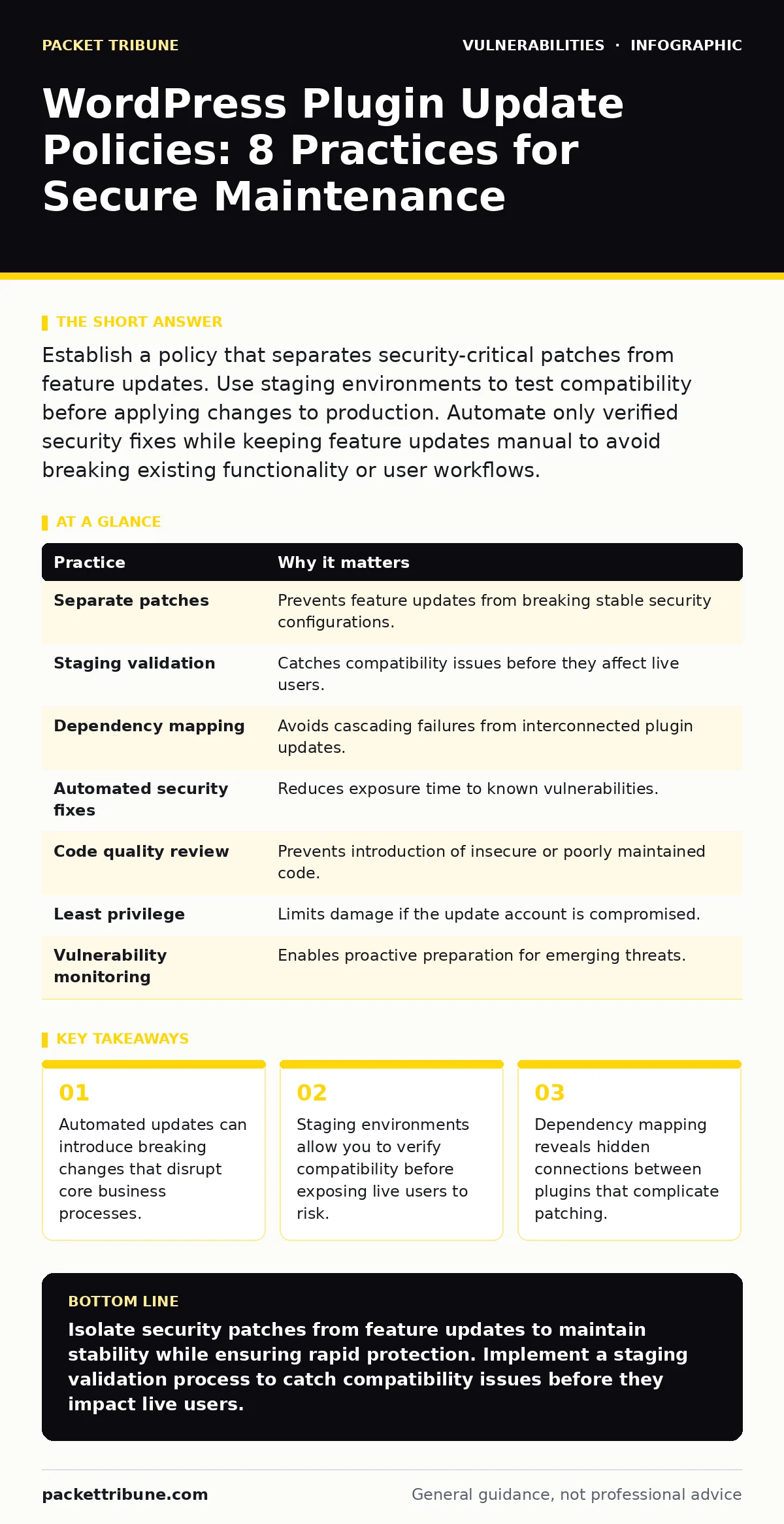
2. Enforce Staging Environment Validation
Never apply plugin updates directly to a production server. A staging environment mirrors your live site but remains isolated from public traffic. This allows you to verify that an update does not break existing functionality. You can check for JavaScript conflicts, CSS layout shifts, and database errors. This step catches issues that automated tests miss. It protects your users from experiencing broken interfaces or lost data.
Tip: Maintain a staging site that syncs with production weekly. Run the same update sequence on staging first, then deploy to production only after confirming all critical paths function correctly.
3. Map Plugin Dependencies and Conflicts
Plugins rarely operate in isolation. Many rely on shared libraries or interact with other extensions. An update to one plugin can break a dependent plugin that has not been updated. This hidden dependency creates a cascade of failures. You must document which plugins interact with each other. Understanding these relationships helps you update related components together. This prevents partial states where one component expects a new API while another provides an old one.
Tip: Create a dependency matrix for your top ten most-used plugins. Update all interconnected plugins in a single maintenance window to avoid version mismatches.
4. Automate Only Verified Security Fixes
Full automation is risky for complex web applications. You should automate the application of security patches that have been verified in staging. This ensures rapid response to emergency patching scenarios without human delay. However, you must keep feature updates manual. This balances speed with stability. Automation reduces the window of exposure to known exploits. Manual review prevents accidental deployment of breaking changes.
Tip: Use a webhook to trigger a staging test when a new security patch is available. Only if the test passes should the automation proceed to the production environment.
5. Review Code Quality Before Installation
Not all plugins are created equal. Poorly written code introduces security technical debt that is hard to remove later. You must evaluate the quality of the code before installing any new plugin. Look for regular update history and active developer support. Avoid plugins that have not been updated in a long time. These often contain outdated libraries that are vulnerable to known attacks. High-quality code reduces the frequency of required patches.
Tip: Check the plugin’s repository for open issues and recent commit activity. Avoid plugins with unresolved critical bugs or those that rely on deprecated functions.
6. Implement Least Privilege for Updates
The user account performing updates must have limited permissions. Full administrator access allows an attacker to modify core files if they compromise the update mechanism. You should create a dedicated service account with only the permissions needed to install and update plugins. This limits the damage if credentials are stolen. It also prevents accidental changes to core system settings. Restricting access is a fundamental security control.
Tip: Use a dedicated deployment user that can only write to the plugin directory. Do not grant this user access to the database configuration or core WordPress files.
7. Monitor for Vulnerability Disclosures
You must stay informed about new vulnerabilities. Relying solely on automatic updates leaves gaps if a patch is not yet available. Subscribe to security advisories and monitor CVE Numbering Authorities for relevant disclosures. This allows you to prepare for upcoming patches. You can also implement temporary mitigations, such as web application firewall rules, while waiting for an official fix. Proactive monitoring reduces reaction time.
Tip: Set up alerts for high-severity vulnerabilities affecting your specific plugin versions. This ensures you are aware of risks before they are exploited in the wild.
8. Maintain Regular Backups
Updates can fail. Files can be corrupted. Databases can become inconsistent. Regular backups are your last line of defense. You must maintain frequent, tested backups of your entire site. These backups should include both files and the database. Ensure you can restore from these backups quickly. A backup that cannot be restored is useless. Testing the restoration process is as important as creating the backup.
Tip: Perform a full restore test from your backups at least once a quarter. Verify that the restored site functions correctly and that no data is missing.
| Practice | Why it matters |
|---|---|
| Separate patches | Prevents feature updates from breaking stable security configurations. |
| Staging validation | Catches compatibility issues before they affect live users. |
| Dependency mapping | Avoids cascading failures from interconnected plugin updates. |
| Automated security fixes | Reduces exposure time to known vulnerabilities. |
| Code quality review | Prevents introduction of insecure or poorly maintained code. |
| Least privilege | Limits damage if the update account is compromised. |
| Vulnerability monitoring | Enables proactive preparation for emerging threats. |
| Regular backups | Ensures recovery from failed updates or corruption. |
9. Document Update Procedures
Clear documentation ensures consistency. You must document the steps for testing and deploying updates. This includes who is responsible, how to test, and how to roll back. Documentation reduces reliance on individual memory. It allows new team members to follow established procedures. Consistent processes reduce errors and improve auditability. Clear records also help in post-incident analysis if something goes wrong.
Tip: Create a runbook that details the exact steps for updating plugins, including rollback procedures. Keep this document accessible to all team members involved in maintenance.
Key takeaways
- Automated updates can introduce breaking changes that disrupt core business processes.
- Staging environments allow you to verify compatibility before exposing live users to risk.
- Dependency mapping reveals hidden connections between plugins that complicate patching.
Isolate security patches from feature updates to maintain stability while ensuring rapid protection. Implement a staging validation process to catch compatibility issues before they impact live users.
Frequently asked questions
How often should I update WordPress plugins?
Security patches should be applied immediately after verification. Feature updates can be scheduled monthly or quarterly, depending on your testing capacity and risk tolerance.
Can I automate all plugin updates?
No. Full automation risks breaking site functionality. Automate only verified security patches and keep feature updates manual to ensure compatibility and stability.
What is the risk of skipping non-security updates?
Skipping non-security updates accumulates technical debt. It may lead to compatibility issues with newer PHP versions or core WordPress releases, eventually forcing a large, risky update batch.
How do I handle a plugin that is no longer maintained?
Find a secure alternative and migrate your data. If no alternative exists, isolate the plugin’s functionality and consider developing a custom solution to maintain control over the code.
How this guide was produced: written by the Packet Tribune editorial team with AI assistance, checked against the public references listed below, and reviewed when the facts change. See our editorial policy or report an error.