Wifi router security: Stop hidden admin access from leaking data
Most home routers expose management interfaces to the local network, allowing any connected device to change settings or view connected clients.
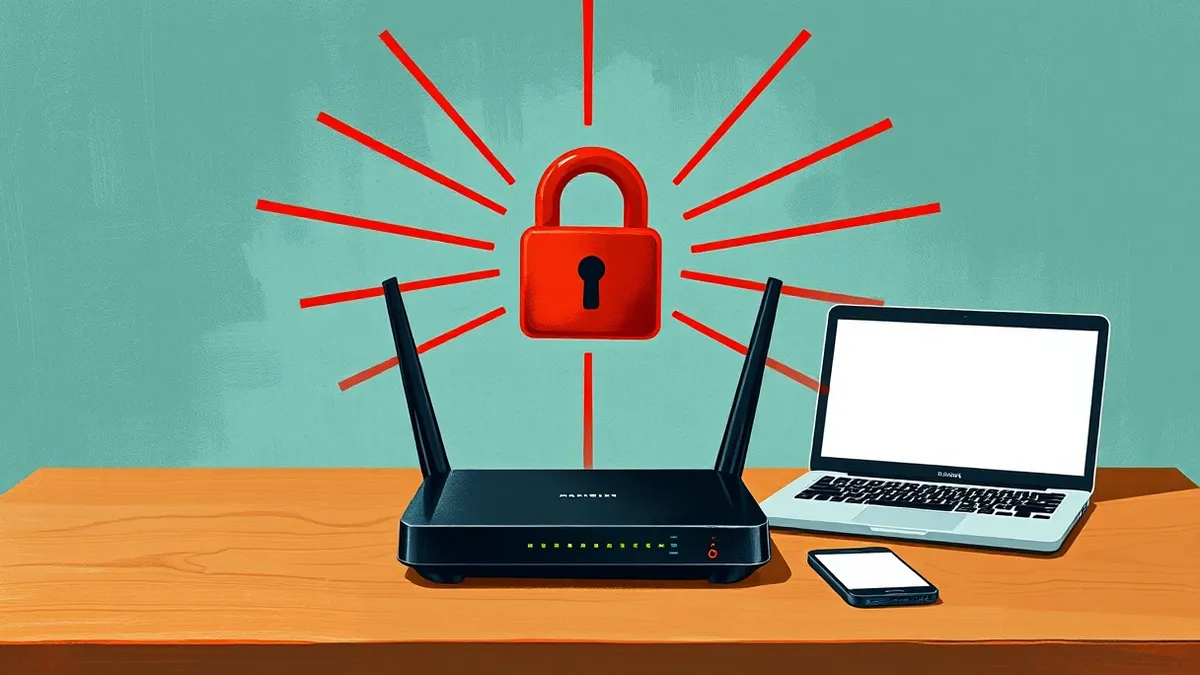
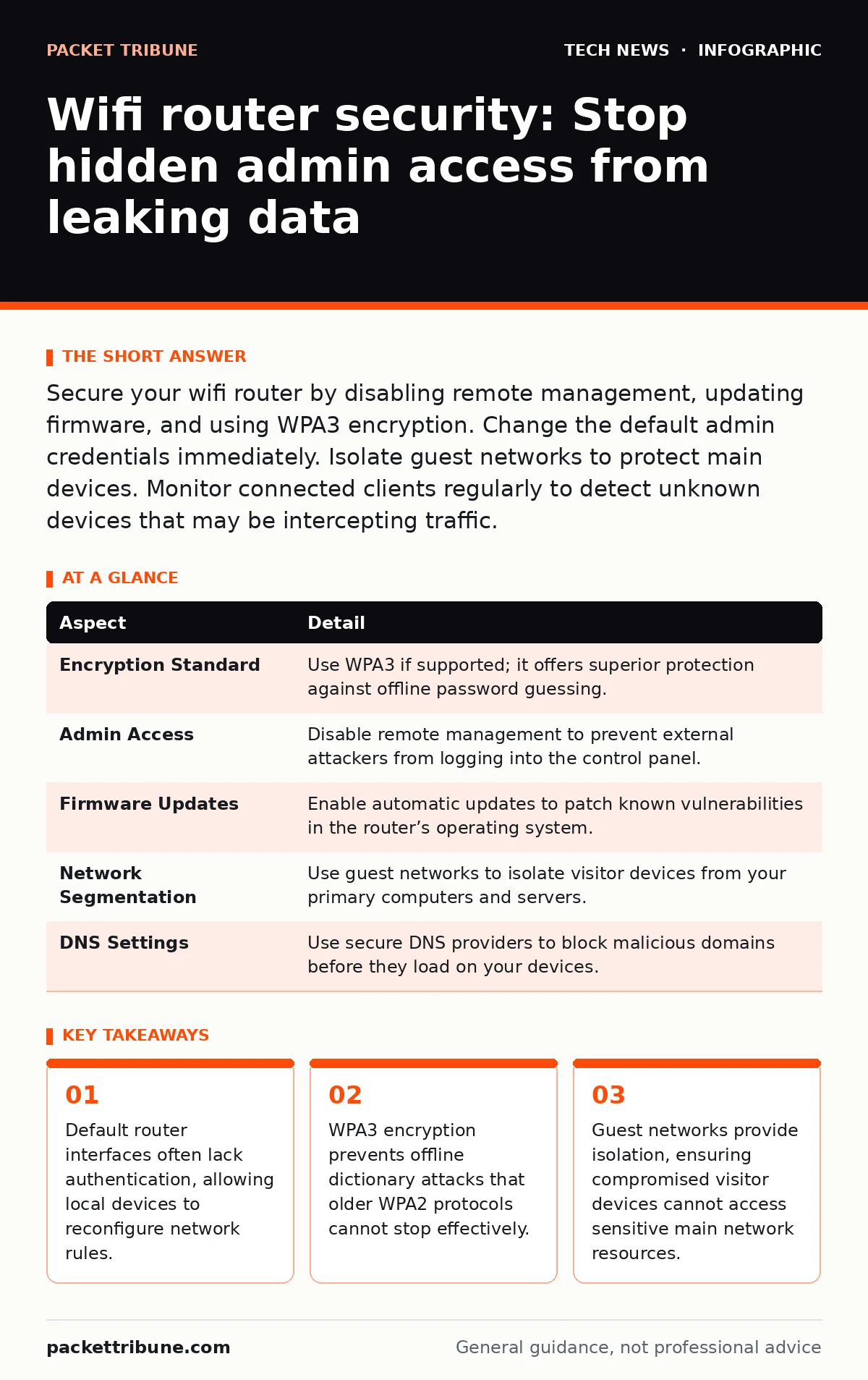
Secure your wifi router by disabling remote management, updating firmware, and using WPA3 encryption. Change the default admin credentials immediately. Isolate guest networks to protect main devices. Monitor connected clients regularly to detect unknown devices that may be intercepting traffic.
Understanding the Router as a Gateway
Your home router acts as a border guard for your digital property. It sits between your local devices and the wider internet, deciding which data packets are allowed to pass through. Without proper configuration, this device becomes a wide-open door rather than a controlled checkpoint. Wifi router security depends on how well you lock these doors and monitor who holds the keys.
Imagine a house with a main door that anyone can open, but a back door that requires a specific key. Most users focus on the main door while ignoring the back entrance. Your router is similar. It handles external threats from the internet, but it also manages internal traffic between your laptop, phone, and smart home devices. If the internal controls are weak, an attacker inside your network can bypass external defences entirely.
At a Glance: Router Security Components
| Aspect | Detail |
|---|---|
| Encryption Standard | Use WPA3 if supported; it offers superior protection against offline password guessing. |
| Admin Access | Disable remote management to prevent external attackers from logging into the control panel. |
| Firmware Updates | Enable automatic updates to patch known vulnerabilities in the router’s operating system. |
| Network Segmentation | Use guest networks to isolate visitor devices from your primary computers and servers. |
| DNS Settings | Use secure DNS providers to block malicious domains before they load on your devices. |
How Wifi Router Security Works
The router uses a set of rules called a firewall to filter incoming and outgoing traffic. It checks the source and destination of each data packet against these rules. If a packet matches a blocked rule, the router discards it. This process happens at the network layer, before the data reaches your individual devices.
Encryption protects the data itself while it travels through the air. WPA3 encryption uses a handshake process that makes it extremely difficult for attackers to capture and crack your password. Older standards like WPA2 are vulnerable to specific attacks that allow offline cracking. Upgrading to WPA3 ensures that even if an attacker captures the handshake, they cannot easily derive the key. This relates closely to how TLS handshake protocols establish secure connections on the wider web, ensuring both parties verify each other before exchanging sensitive data.
Who Is Affected by Weak Configurations
Every device connected to your network is at risk if the router is misconfigured. This includes laptops, smartphones, smart TVs, and Internet of Things devices like cameras and doorbells. Smart home devices often have weak security themselves, relying on the router to provide an extra layer of protection. If the router fails, these devices become easy targets for data theft or remote control.
Attackers can exploit weak router settings to launch man-in-the-middle attacks. They intercept traffic between your device and the internet, allowing them to read unencrypted data. This affects anyone who uses the network for banking, shopping, or email. The impact extends beyond just data loss. A compromised router can be used as a launchpad for attacks against other networks, making your home part of a larger botnet.
What Most People Get Wrong
Users often believe that changing the wifi password is sufficient for security. This is a common misconception. The wifi password protects access to the network, but the admin password protects control of the router itself. If an attacker gains admin access, they can change your wifi password, disable encryption, or redirect your traffic to malicious sites. You must treat the admin interface with higher security than the wifi connection.
Another mistake is leaving the default DNS settings unchanged. Many routers use the ISP’s default DNS servers, which may not filter malicious domains. Changing these to a secure DNS provider adds a layer of protection against phishing and malware. This is similar to how DNS over HTTPS encrypts DNS queries, preventing snooping and tampering. By securing the DNS layer, you reduce the risk of being directed to fake websites that steal credentials.
See also: OAuth vs API Key: When to Use Tokens and When to Use Secrets · Different Types of Load Balancers: Architecture and Selection
Practical Steps to Secure Your Router
Disable remote management on your router. This feature allows you to access the admin panel from outside your home network. While convenient, it exposes the login page to the entire internet. Attackers constantly scan for routers with this feature enabled. Turning it off ensures that only devices physically connected to your network can attempt to log in.
Update the router firmware regularly. Manufacturers release updates to fix security holes discovered in the router’s code. Leaving old firmware installed leaves known vulnerabilities open. Check for updates monthly or enable automatic updates if the router supports them. This practice mirrors the importance of code signing in software development, where verifying the source of updates ensures they have not been tampered with by attackers.
Use strong, unique admin credentials. The default username and password are often published online, making it easy for attackers to guess. Change both to complex strings that do not appear in any dictionary. Use a password manager to generate and store these credentials securely. This prevents credential stuffing attacks, where hackers use leaked passwords from other sites to gain access.
Isolating Devices with Guest Networks
Create a separate guest network for visitors and smart home devices. This network should be isolated from your main network. Devices on the guest network cannot communicate with devices on the main network. This containment strategy limits the damage if a guest device is compromised or if a smart device has a vulnerability.
Suppose you invite guests over for dinner. They connect their phones to your wifi. If one of their devices has malware, that malware could scan your main network for vulnerable devices. With a guest network, the malware is contained. It can access the internet, but it cannot see your laptop or file server. This isolation is a form of network access control, restricting what devices can do based on their location and identity.
Advanced Protection Measures
Consider using a router that supports AES encryption for data storage. Some routers store configuration files locally. If an attacker gains physical access to the router, they might extract these files. AES encryption ensures that even if the files are stolen, they cannot be read without the key. This adds a layer of security for physical theft scenarios.
Monitor your connected devices regularly. Most router interfaces show a list of currently connected devices. Check this list periodically for unknown entries. If you see a device you do not recognise, disconnect it and change your wifi password. This helps detect intrusions early. You can also set up alerts for new device connections if your router supports this feature.
Key takeaways
- Default router interfaces often lack authentication, allowing local devices to reconfigure network rules.
- WPA3 encryption prevents offline dictionary attacks that older WPA2 protocols cannot stop effectively.
- Guest networks provide isolation, ensuring compromised visitor devices cannot access sensitive main network resources.
Frequently asked questions
Can a hacker hack my wifi router from far away?
No, not if remote management is disabled. Hackers need to be on your local network to access the admin panel. They cannot reach it from the internet if this feature is turned off.
Is WPA2 encryption enough for home wifi router security?
WPA2 is acceptable if WPA3 is unavailable, but it is vulnerable to offline dictionary attacks. WPA3 provides stronger protection by preventing attackers from guessing your password using captured handshakes. Upgrade to WPA3 whenever possible.
Do I need to update my router firmware if I never go online?
Yes, you should still update it. Firmware updates fix vulnerabilities that could be exploited by local attackers or malware on connected devices. Even if you do not use the internet heavily, your devices may still interact with the router in ways that expose it to risks.
How often should I check my router settings?
Check your settings every 6 months. Verify that firmware is up to date, admin credentials are strong, and unknown devices are not connected. Regular checks help catch misconfigurations or intrusions early, maintaining a secure environment over time. BOTTOM LINE: Treat your router as a critical security appliance, not just a connectivity tool. Disable remote access and update firmware to prevent external and internal threats.
How this guide was produced: written by the Packet Tribune editorial team with AI assistance, checked against the public references listed below, and reviewed when the facts change. See our editorial policy or report an error.